
Invite and manage administrators
To give someone access to your organization’s sign-ups, invite them by email. Once they accept, they see every organization sheet straight away. Owners and admins can send invitations.
Invite someone
- Open Organization from the menu.
- Under Invite an administrator, type their email address.
- Choose a role: Admin, Member, or Viewer. The table below explains each.
- Click Send invite.
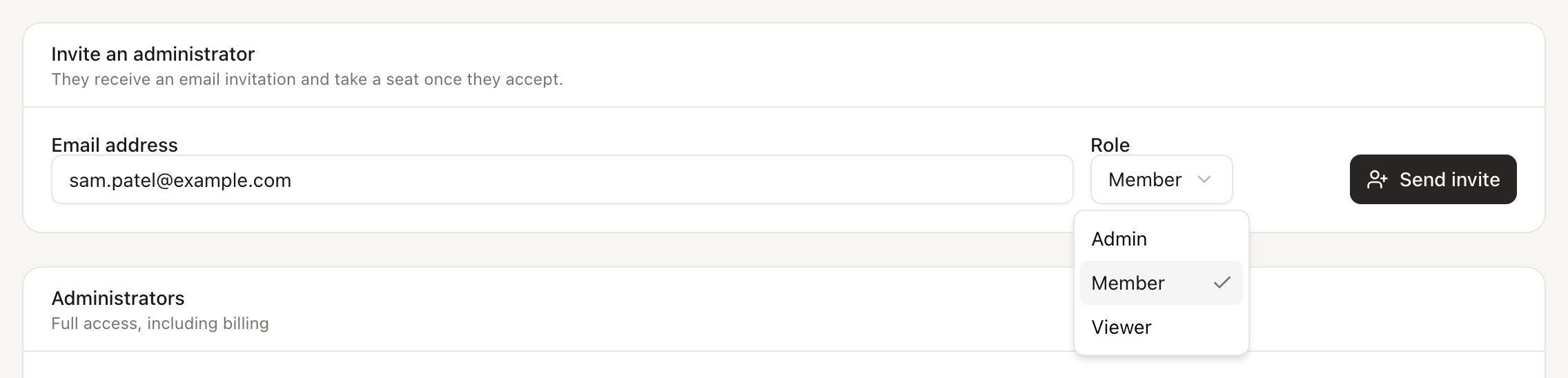
The invitation stays pending until they accept, and it holds a seat while it waits. It lasts 7 days. Pending invitations are listed on the same page, where you can cancel one to free its seat.

Invitation expired, or the email went astray? Click Cancel, then invite the same address again. A fresh email goes out with a new 7 days.
What the invitee does
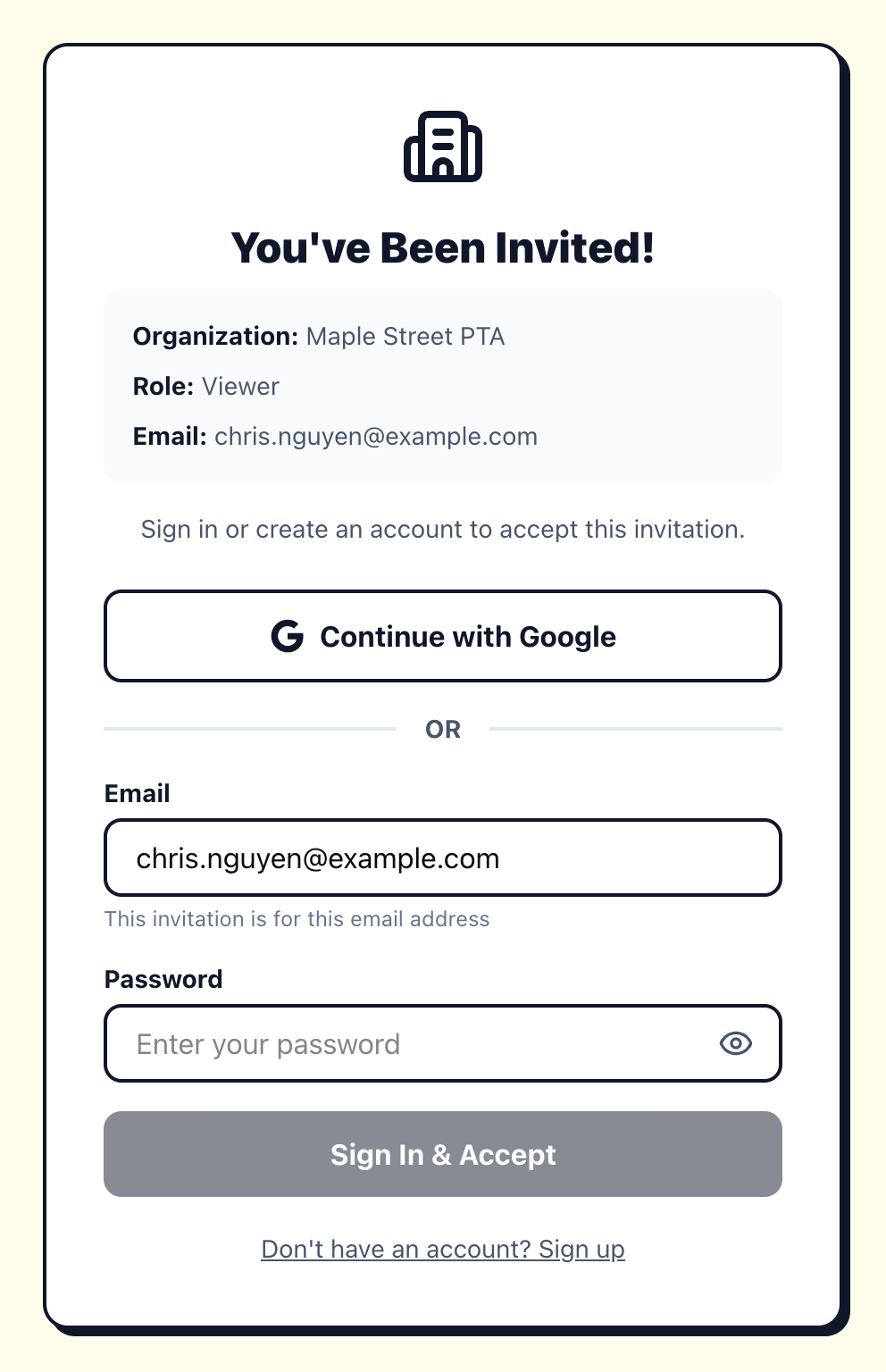
- Open the invitation email and click the link.
- Sign in, or create an account, using the same email address the invitation was sent to. Continue with Google works if that is the same address.
- The invitation is accepted and they land in the organization.
Roles
Everyone in the organization has one role. Every role takes a seat, the owner included.
| Role | Can do |
|---|---|
| Owner | Everything an admin can, plus the plan: changing seat tiers and managing billing. The person who bought the plan is the owner. |
| Admin | Create and edit every organization sheet. Invite, remove, and change the role of other people. Transfer any sheet. Set branding. Export all sign-ups and read the activity log. |
| Member | Create and edit every organization sheet, and hand over sheets they created. Read reports. Cannot invite people or export the whole organization. |
| Viewer | See every sheet, roster, contact, and document, and read reports. Cannot change anything the organization owns. |
Change a role or remove someone
Owners and admins manage everyone from the Administrators list on Organization. Pick a new role from the menu next to a person, or click the bin to remove them.
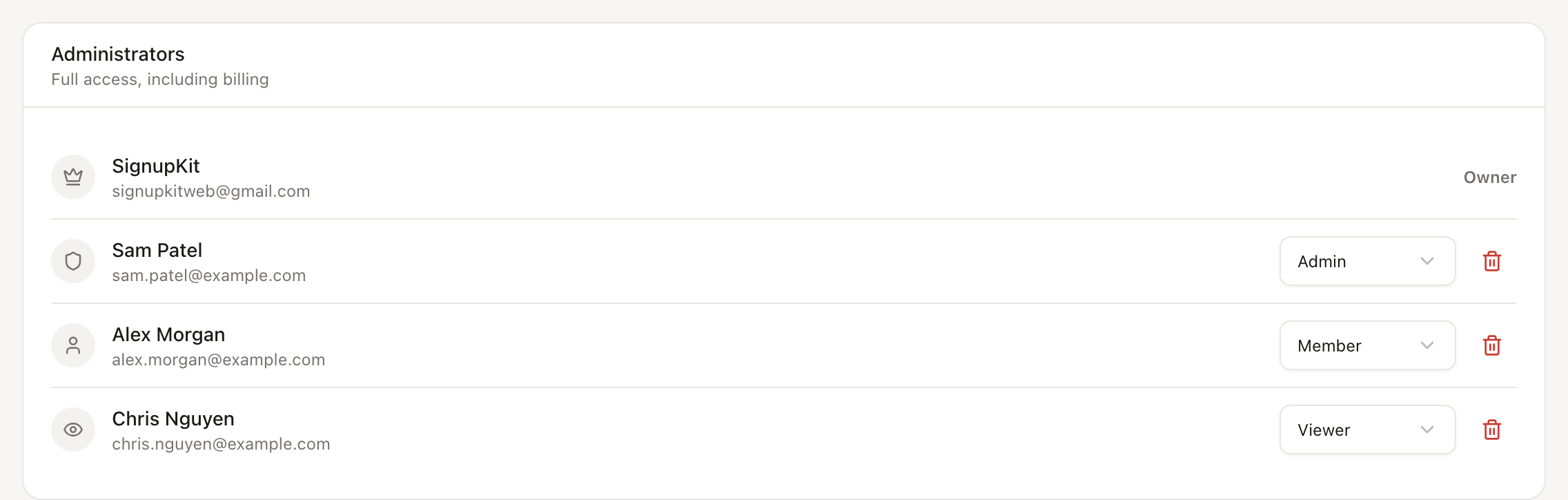
Removing someone takes effect straight away and frees their seat. Their organization sheets move to the owner, so a live event always has someone running it. Sheets they kept personal stay theirs. To hand their sheets to someone else instead, transfer them before removing the person. See Transfer a sheet.
Leaving an organization yourself is done the same way: ask an owner or admin to remove you. To make someone else the owner, contact support.
Seats
Your plan includes 5, 10, 20, or 30 seats. Everyone who has joined takes one, and so does every pending invitation. When all seats are in use, the invite form is disabled until you cancel an invitation, remove someone, or move to a larger tier. See Seats and billing.