
Documents
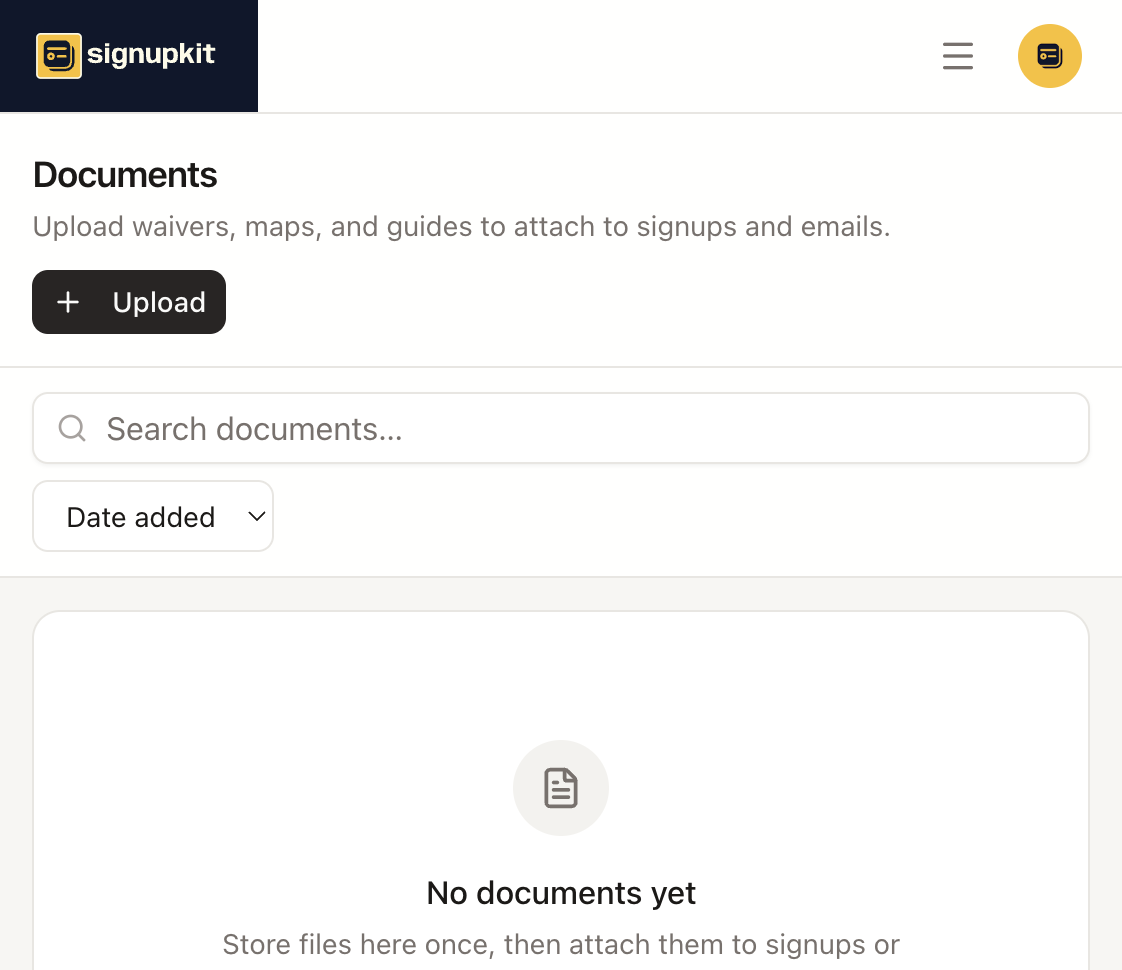
A document is a file you upload once and then attach wherever people need it: on the public signup page, in the confirmation email, or in a message you send later. Maps, packing lists, waiver PDFs, and sheet music all belong here.
When to use a file
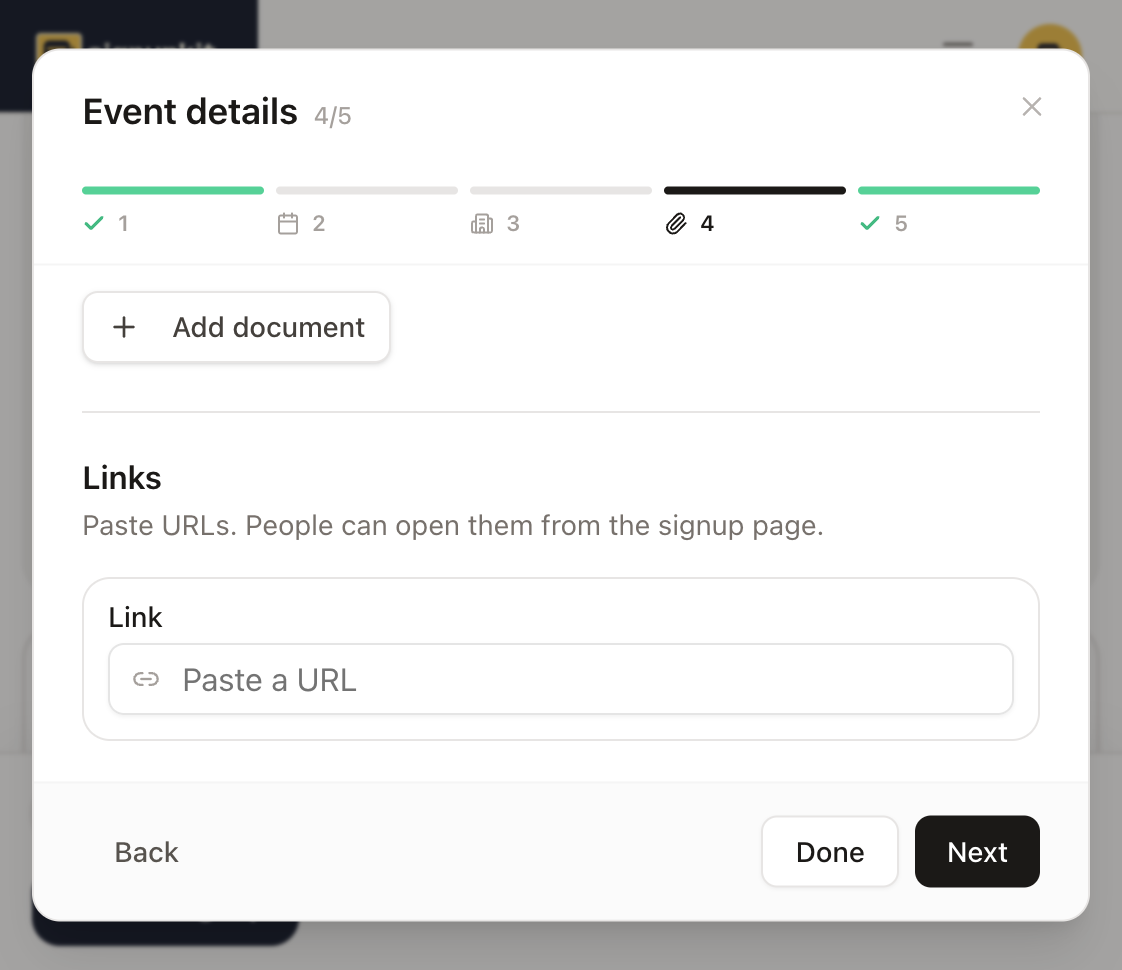
- Put a map, a schedule, or a checklist on the public page when guests should see it before they sign up. Open the event details, go to Attachments, and click Add document.
- Put a file only in the confirmation and the reminder when it should travel with the person who signed up and not sit on the public page. That control is Signup emails, and it is paid. You can copy the public files into the email from there, or attach a different file.
- A waiver people must sign on the form is not a PDF attachment. It is a Waiver question. Use a PDF when you want them to download a copy. Use the waiver field when you need the signature stored with the signup.
How to add one
Open Documents and click Upload. Choose the file. Each file can be up to 10 MB. The library then lists it with its size, and you can search or sort by date added, name, or how often it is used. Images and PDFs can be previewed from the library. Rename or delete a file from its row when you no longer want it offered.
On the sheet, Add document opens this same library. Pick the file and confirm Attach. The name guests see can be edited after it is attached. A link, which is a URL rather than a file, is added in the same Attachments step under Links.
How much you can store
- Free plan: 100 MB across the library.
- Weekly Pass: 5 GB, for the seven days the pass lasts.
- Pro and Organization: no storage cap.
The 10 MB per-file limit applies on every plan. A file that would push the library over the plan’s storage is refused, and the message says how much of the cap you are already using.