Manage a signup
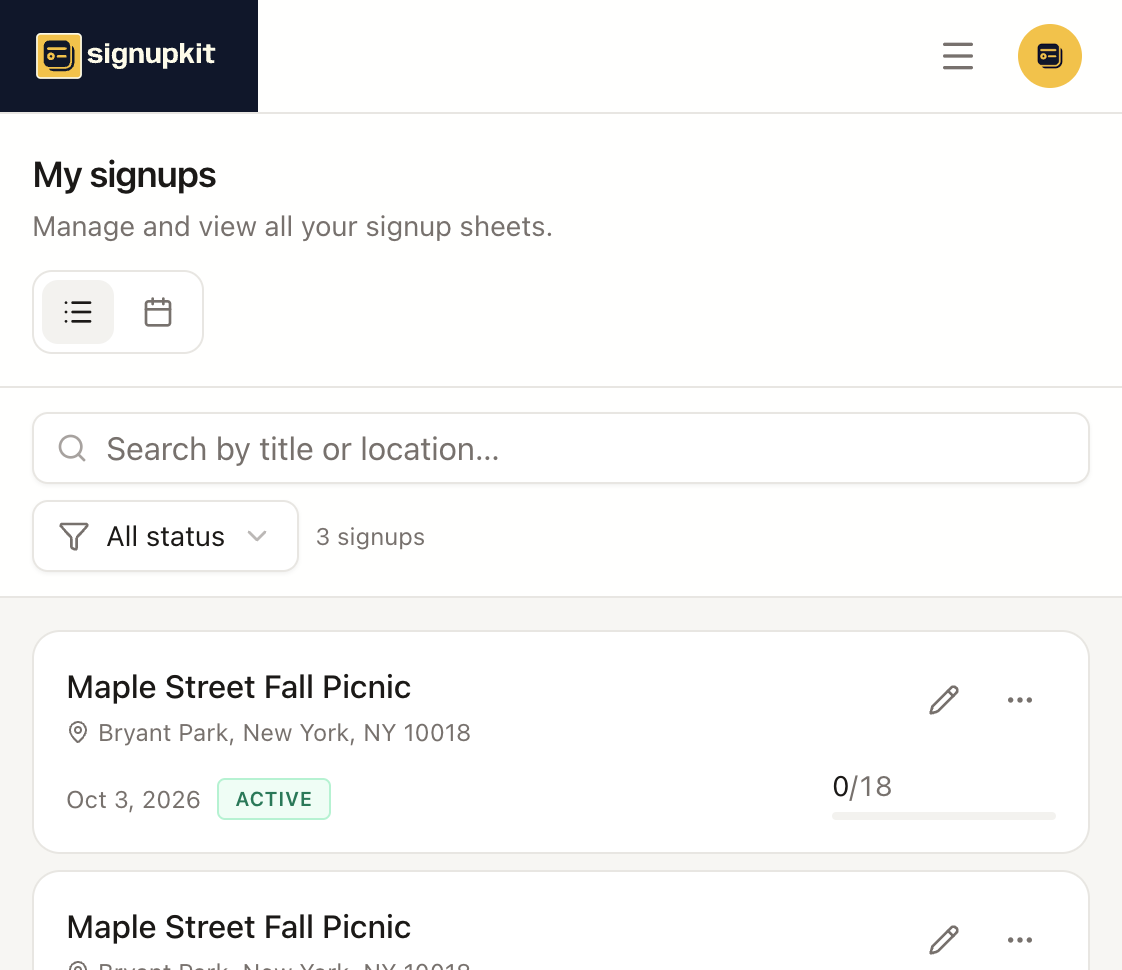
After you publish, the sheet lives under My signups. Open it to see who came in, change who is on which row, or stop new people from signing up. Editing the sheet itself — the slots, the questions, the theme — is the pencil, which opens the builder again.
The roster
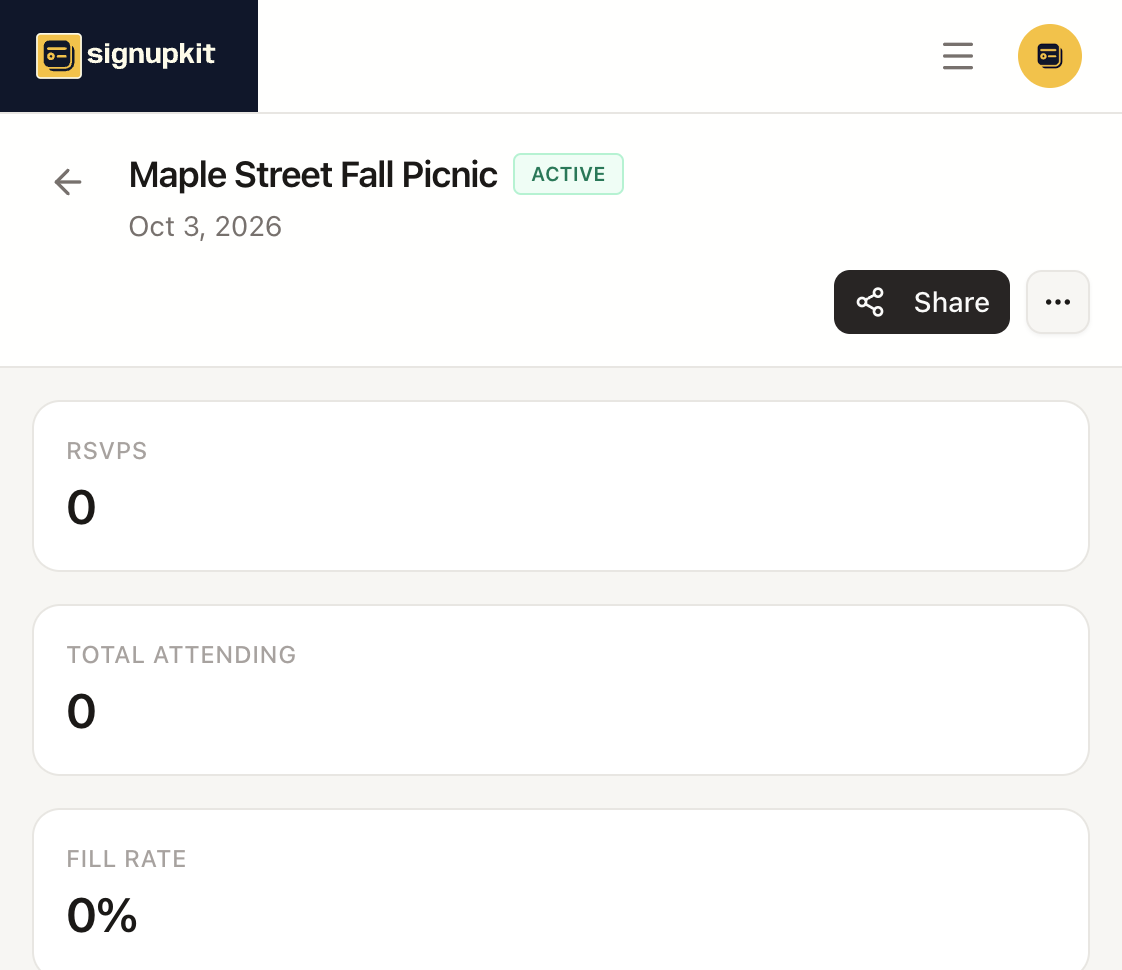
Open a signup. Overview is the public link, the date, the place, and how full each slot is. Participants is the list of people. Responses appears when the sheet has custom questions, and it collects those answers in one place.
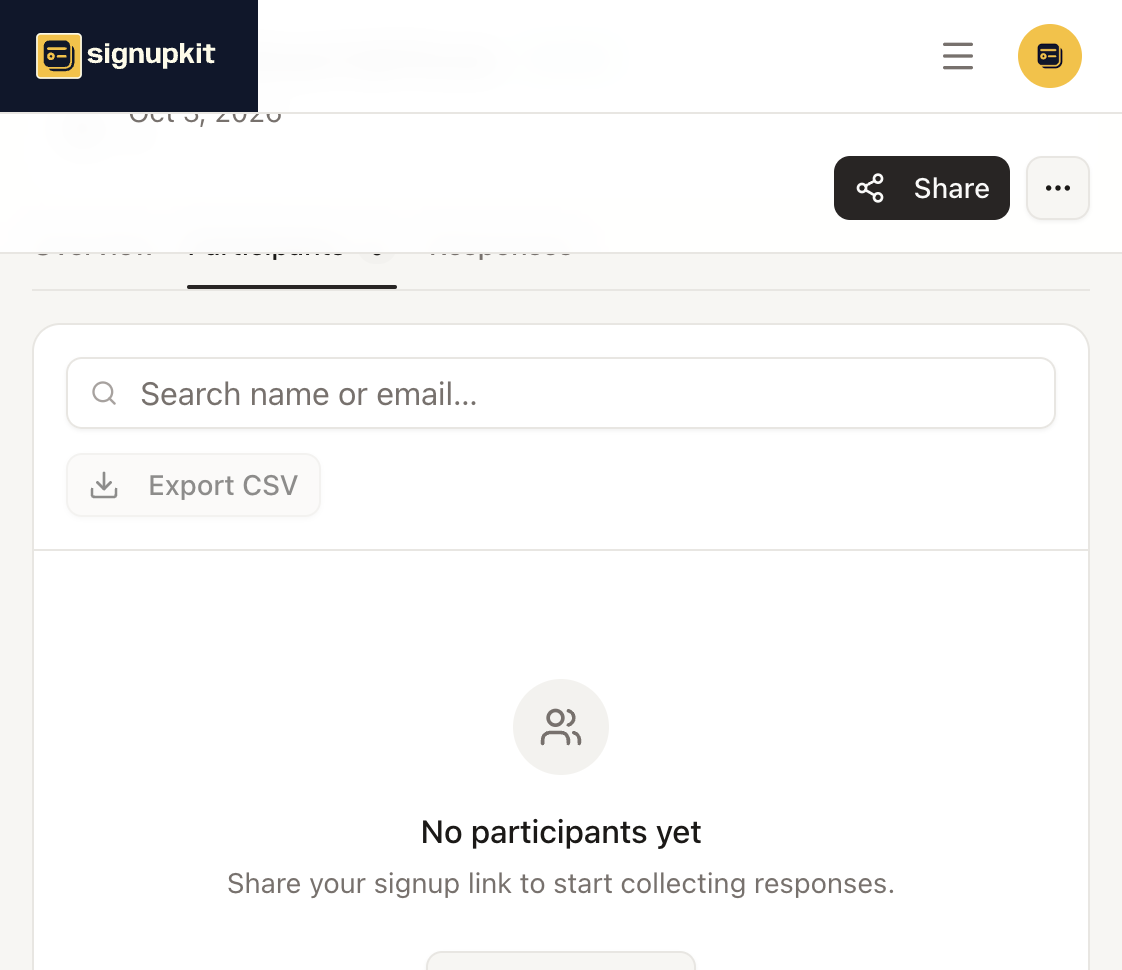
On Participants, search by name or email. Export CSV downloads the roster, including text answers. Quantity on a row can be edited: change the number and click away to save. Change slot moves a person to a different row. Select several people to delete them together. Removing someone frees their spot. It does not refund a ticket. Ticket charges live in Stripe, which is covered under Tickets.
Pause, copy, and duplicate
- Stop signups leaves the page up and refuses new claims. The header shows Paused. Resume signups opens it again. Nothing already collected is deleted.
- Share and Copy link are the public address. The same dialog that appears when you first publish also has the embed code: an iframe plus a script that sizes the frame to the form. Paste that into your own site. A site that strips scripts still shows the form, at a fixed height.
- Download QR is on the more menu in My signups, and on the publish dialog. QR codes are paid. On the free plan the menu item stays and does not download.
- Duplicate copies the sheet into a new draft and opens the builder. The copy does not take the original’s signups with it. Use it for next month’s shift, or a second classroom with the same jobs.
- Delete removes the whole sheet. On My signups, open the more menu (⋯) on that row and choose Delete. The dialog asks you to confirm. The sheet and everyone who signed up are removed, and it cannot be undone. Deleting one person is separate: that is on the Participants tab, and it only frees their spot.
Who can open the link is set in the builder, under Sharing. Pausing does not change that. A paused public page is still public. It just will not take a new signup.